Integration with Microsoft Teams

We have to enable Share: Microsoft Teams integration option using the available plug-ins and obvious some configuration would be required.
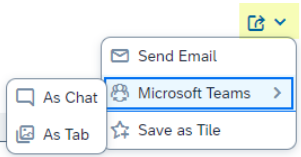
Image Source: community.sap.com

ShareMicrosoft Teams with the options As Chat and As Tab. 

  • As Chat:

Collaborate and quickly resolve issues, if necessary, simply by using Microsoft Teams As Chat to share a direct link with co-workers. You can provide them with access to a specific state of an SAP Fiori application, for example, so they can easily process any requests you have or tasks that come up.

  • As Tab:

Work efficiently with a group of co-workers on specific content that you share in the form of a Microsoft Teams tab. Use the Microsoft Teams environment to work on the same context of an SAP Fiori application and use the tab conversation option in parallel to share ideas, discuss, and collaborate.
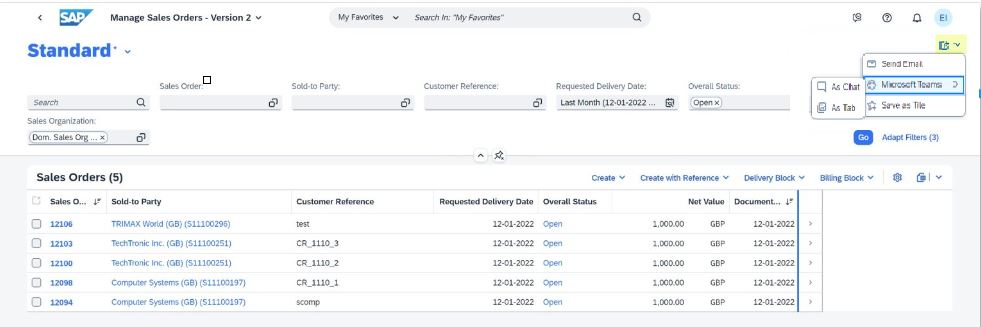
Image Source: community.sap.com

Restriction

  1. The following restrictions apply to the Share: Microsoft Teams feature:
    • It is not supported on mobile devices and tablets.
    • It is not supported on all browsers.
  2. The Share: Microsoft Teams feature is not available for the following applications:
    • Apps using SAP GUI for HTML.
    • Web Dynpro apps.
    • Apps and transactions based on the WebClient UI for the Customer Relationship Management framework.

Follow the given steps to enable the Microsoft Teams integration:
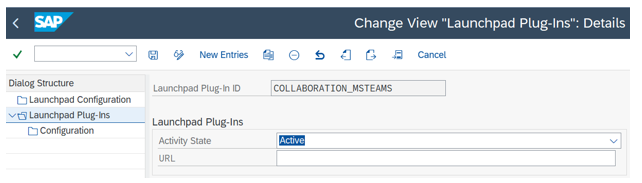
  • Log in to SAP GUI (SAP Logon).
  • Open the transaction /n/UI2/FLP_CUS_CONF to establish a new plug-in entry.
  • Within the Dialog Structure, navigate to Launchpad Plug-Ins.
  • Create a new entry by clicking “New Entries” or using the F5 key for a Launchpad Plug-In.
  • Input COLLABORATION_MSTEAMS as the Launchpad Plug-In ID in the designated field.
  • Set the Activity State to Active under Launchpad Plug-Ins.

Image Source: blogs.sap.com

To Activate the Share as Chat and As Tab

Microsoft Teams As Chat option, navigate to the Change View “Configuration”: Overview screen. Under the Dialog Structure in Launchpad Plug-Ins Configuration, define the properties for Launchpad Plug-Ins associated with the As Chat and As Tab options.

To enable Share: Microsoft Teams As Chat, create a new property within Configuration. Enter IS_SHARE_AS_LINK_ENABLED as the Launchpad Property ID, and designate the Property Value as X.
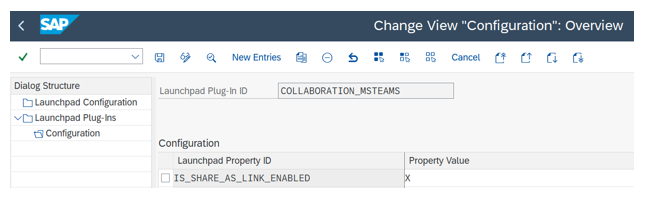
Image Source: blogs.sap.com

To activate the Share: Microsoft Teams As Tab option, replicate the configuration process by applying the same settings for IS_SHARE_AS_TAB_ENABLED.
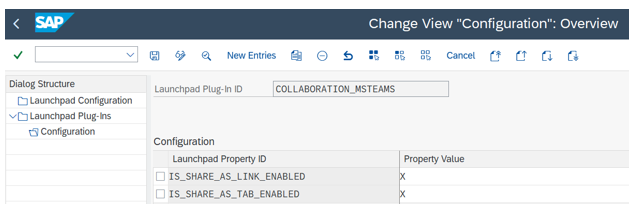
Image Source: blogs.sap.com

You need to take a few additional steps to enable the Share As Tab feature. The Microsoft Teams administrator, holding the Global Admin role, should access the Microsoft Teams admin center portal and navigate to “Overview of app management”.
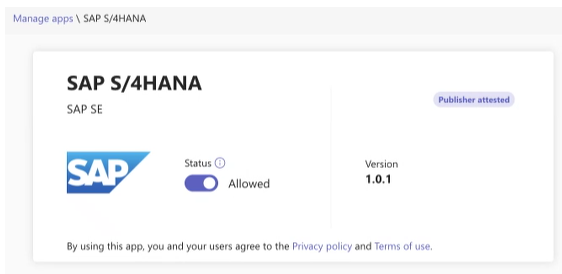
  • Log in to the Microsoft Teams admin center and go to the “Manage apps” section.
  • Choose “Org-wide app settings” and enable the option to use third-party apps.
  • Within the “Manage apps” page, find the SAP S/4HANA app and click on it.
  • Verify that the Status is set to Allowed, as shown in the accompanying screenshot.

Image Source: blogs.sap.com

Permissions

Now that the application is ready for your users, the Azure administrator with the Global Admin role in the Enterprise Applications portal must provide the necessary permissions. To accomplish this, follow these steps:
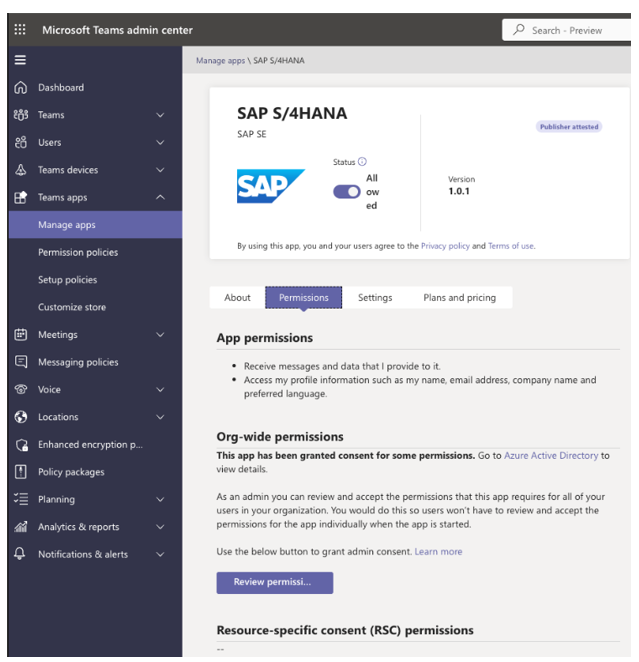
  • Log in to the Microsoft Teams admin center and navigate to the “Manage apps” section.
  • To enable all users to use the app, go to the Permissions tab within the application
  • Select “Review permissions” and then click on “Accept.” This configuration is illustrated in the provided screenshot.

Image Source: blogs.sap.com

Allowlist

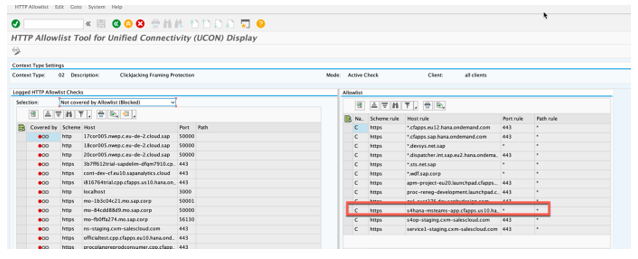
Now, the SAP S/4HANA system administrator needs to include the trusted hosts. Follow these steps to accomplish this:
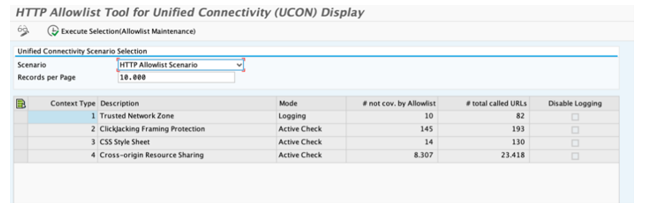
  • Open the SAP GUI and enter the transaction code UCONCOCKPIT.
  • Within the Scenario field, select the HTTP Allowlist Scenario.

Source: https://blogs.sap.com/

  • Opt for ClickJacking Framing Protection.
  • Add s4hana-msteams-app.cfapps.us10.hana.ondemand.com to the Allowlist in the Host rule.

Source: https://blogs.sap.com/

Troubleshooting

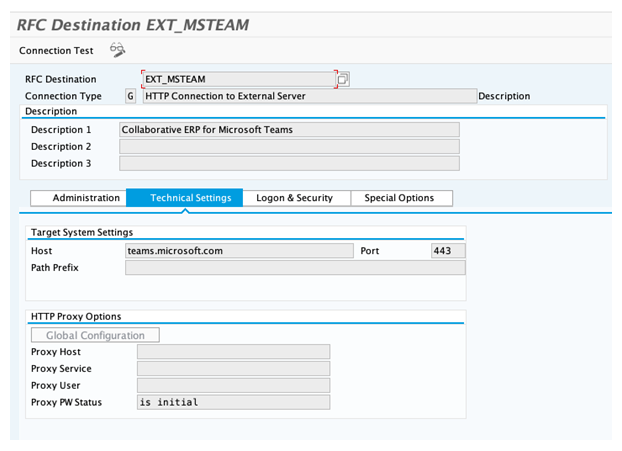
If users assigned the Employee (SAP_BR_EMPLOYEE) business role are unable to view the Microsoft Teams tile in the SAP Fiori launchpad, perform the following configuration:

  • Open SAP GUI and navigate to transaction SM59.
  • Choose the HTTP Connections to the External Server node.
  • In the Configuration of RFC Connections screen, pick the HTTP Connection to External Server node and click Create to open the Create Destination dialog box.
  • Enter EXT_MSTEAM as the Destination, and select HTTP Connection to External Server as the Connection Type.
  • Proceed by clicking the green checkmark.
  • In the RFC Destination EXT_MSTEAM screen, go to the Technical Settings tab and configure the Target System Settings with the following:

Hostmicrosoft.com.

Port443.

  • Finalize and save the configuration.

Source: https://blogs.sap.com/

0
    0
    Your Cart
    Your cart is emptyReturn to Shop