We have to enable Share: Microsoft Teams integration option using the available plug-ins and obvious some configuration would be required.
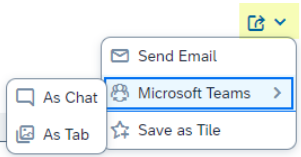
Image Source: community.sap.com
Share: Microsoft Teams with the options As Chat and As Tab.
Collaborate and quickly resolve issues, if necessary, simply by using Microsoft Teams As Chat to share a direct link with co-workers. You can provide them with access to a specific state of an SAP Fiori application, for example, so they can easily process any requests you have or tasks that come up.
Work efficiently with a group of co-workers on specific content that you share in the form of a Microsoft Teams tab. Use the Microsoft Teams environment to work on the same context of an SAP Fiori application and use the tab conversation option in parallel to share ideas, discuss, and collaborate.
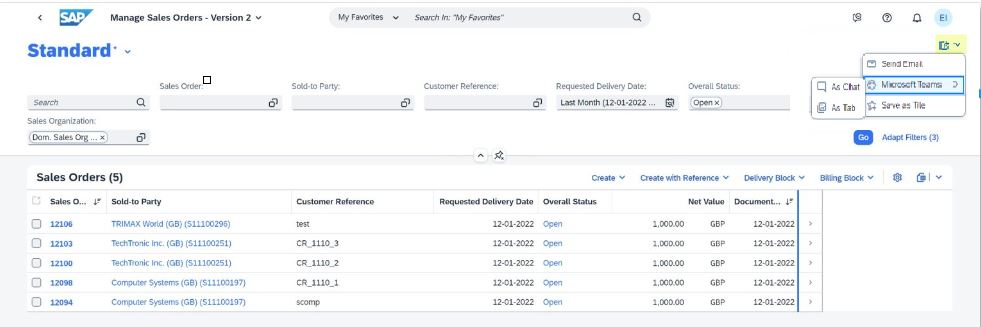
Image Source: community.sap.com
Restriction
Follow the given steps to enable the Microsoft Teams integration:
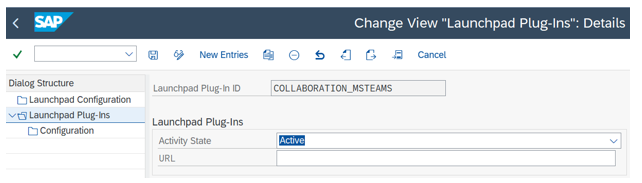
Image Source: blogs.sap.com
Microsoft Teams As Chat option, navigate to the Change View “Configuration”: Overview screen. Under the Dialog Structure in Launchpad Plug-Ins Configuration, define the properties for Launchpad Plug-Ins associated with the As Chat and As Tab options.
To enable Share: Microsoft Teams As Chat, create a new property within Configuration. Enter IS_SHARE_AS_LINK_ENABLED as the Launchpad Property ID, and designate the Property Value as X.
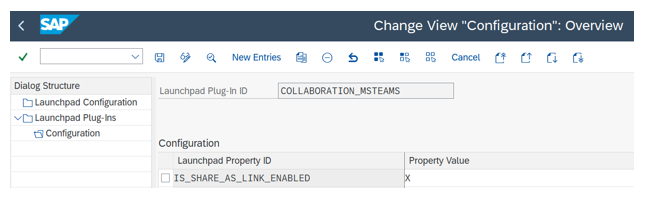
Image Source: blogs.sap.com
To activate the Share: Microsoft Teams As Tab option, replicate the configuration process by applying the same settings for IS_SHARE_AS_TAB_ENABLED.
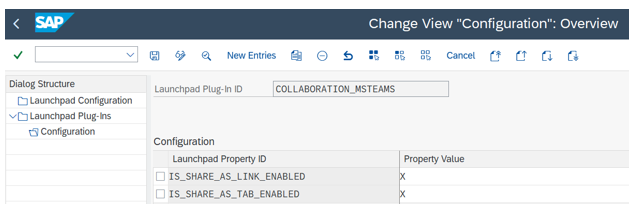
Image Source: blogs.sap.com
You need to take a few additional steps to enable the Share As Tab feature. The Microsoft Teams administrator, holding the Global Admin role, should access the Microsoft Teams admin center portal and navigate to “Overview of app management”.
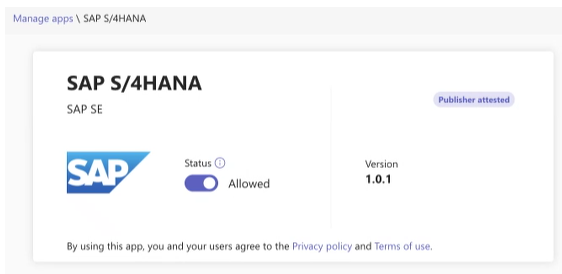
Image Source: blogs.sap.com
Now that the application is ready for your users, the Azure administrator with the Global Admin role in the Enterprise Applications portal must provide the necessary permissions. To accomplish this, follow these steps:
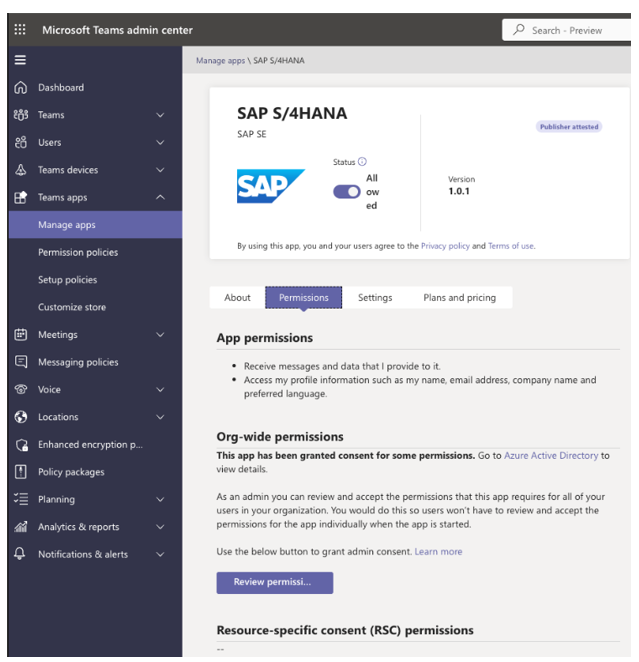
Image Source: blogs.sap.com
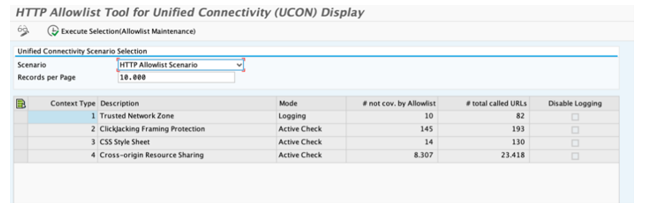
Now, the SAP S/4HANA system administrator needs to include the trusted hosts. Follow these steps to accomplish this:
Source: https://blogs.sap.com/
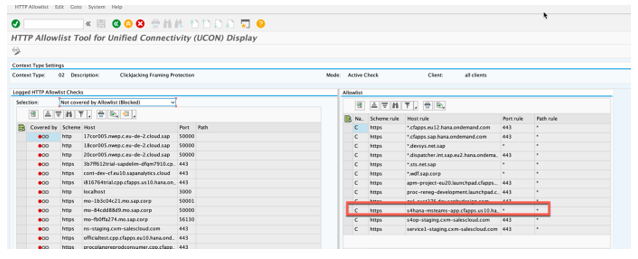
Source: https://blogs.sap.com/
If users assigned the Employee (SAP_BR_EMPLOYEE) business role are unable to view the Microsoft Teams tile in the SAP Fiori launchpad, perform the following configuration:
Host: microsoft.com.
Port: 443.
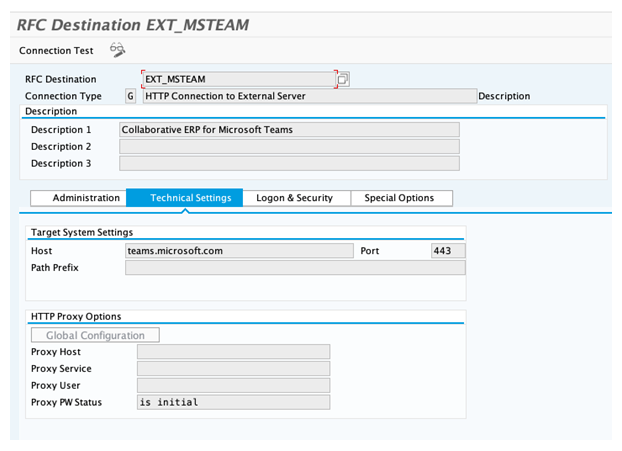
Source: https://blogs.sap.com/