Provides structured way to display the apps in Fiori Launchpad and ease to end user for accessing the apps, which is available from S4 HANA 2020 and onward ON-PREMISE environment.
User must have access of below:
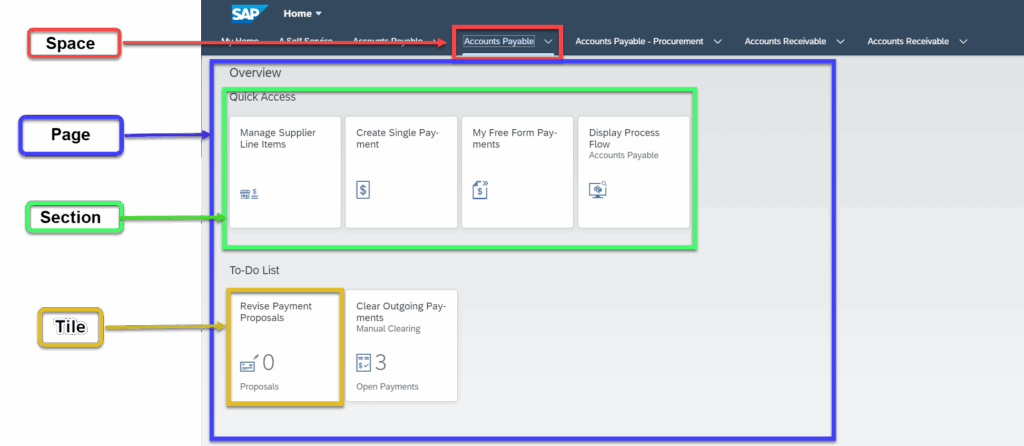
Source: community.sap.com
Steps to Create Space and Pages
Step 1: Go to SAP Logon and enter the TCode – /n/ui2/FLP (Fiori Launchpad) and Press Enter
Step 2: Launch the Fiori app – ‘Manage Launchpad Spaces’.
Step 3: Fill the required details in Popup and Select Also Create a Page Option and click on Create Button. This will create a New Page in this space.
Step 4: Click on Page and select the Page (Row)
Step 5: Add catalogs from which app needs to be assigned, search the catalog and select.
Step 6: Assign the app to the section and Page.
Step 7: If space exist, and need to create new page, we can use the fiori app – Manage Launchpad Pages
Step 8: Add new page into existing Space
Step 9: Once the Space and Pages are created successfully. Next step is to assign the Role.
Step 10: Assign this Role to the User.
Assign the custom space to the role in the Launchpad Content Manager – GUI transaction /UI2/FLPCM_CUST – or in the Role Maintenance transaction PFCG